WooCommerce product bundle example
See how a fixed bundle is set up, shown on the product page, added to the cart, and checked out. Screenshots use test products and customer details.
The live demo and every screenshot use synthetic test data.
These local screenshots show the listed steps. They do not prove a public release or support for every WooCommerce setup.
View Advanced Bundles featuresFixed bundle screenshot walkthrough
-
Add products and quantities.
Choose simple products or exact variations in the WooCommerce product editor.
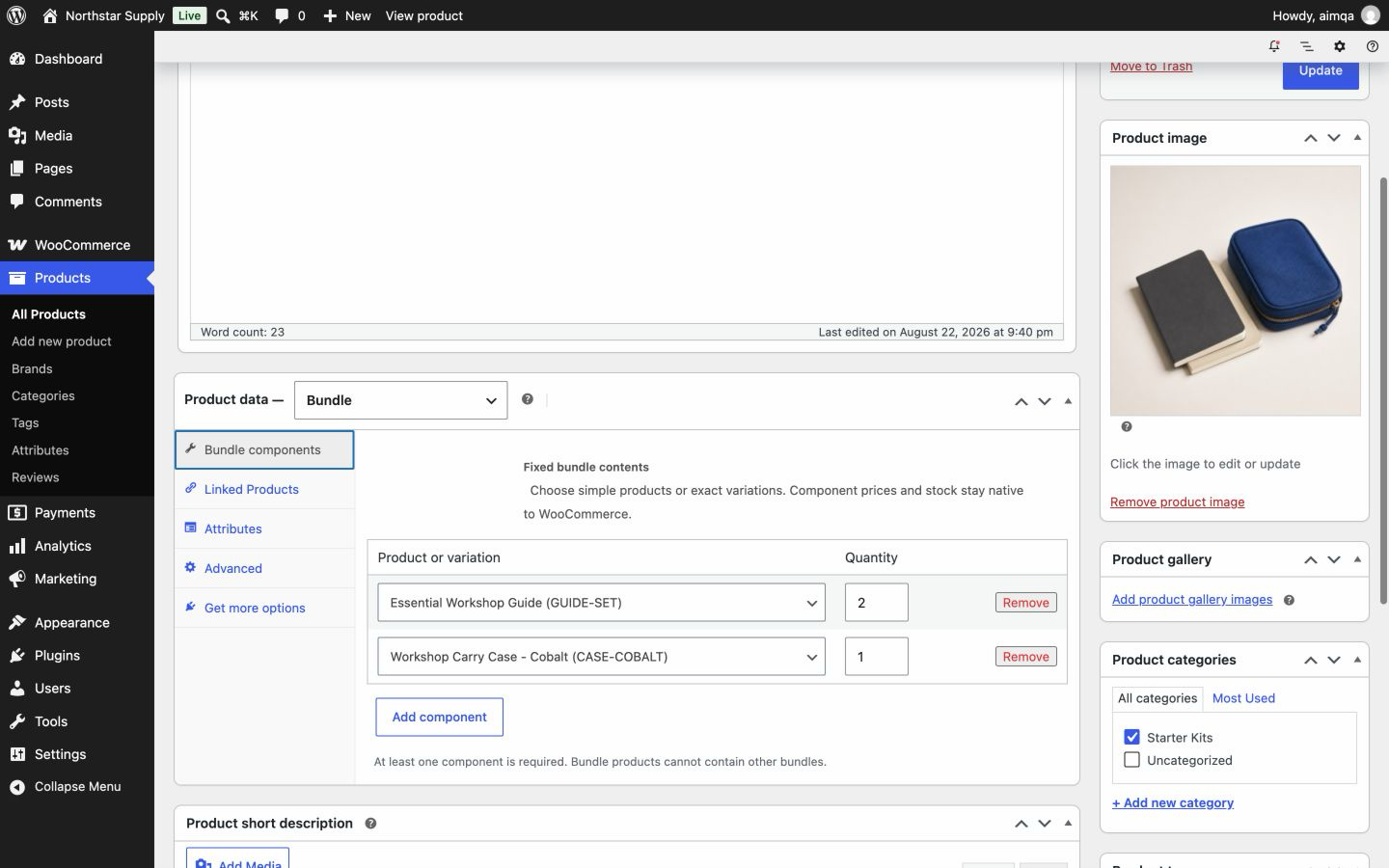
Bundle setup Two included products with fixed quantities. Open full-size Bundle setup image -
Show one bundle product page.
The product page shows the bundle name, total price, and every included item and quantity.
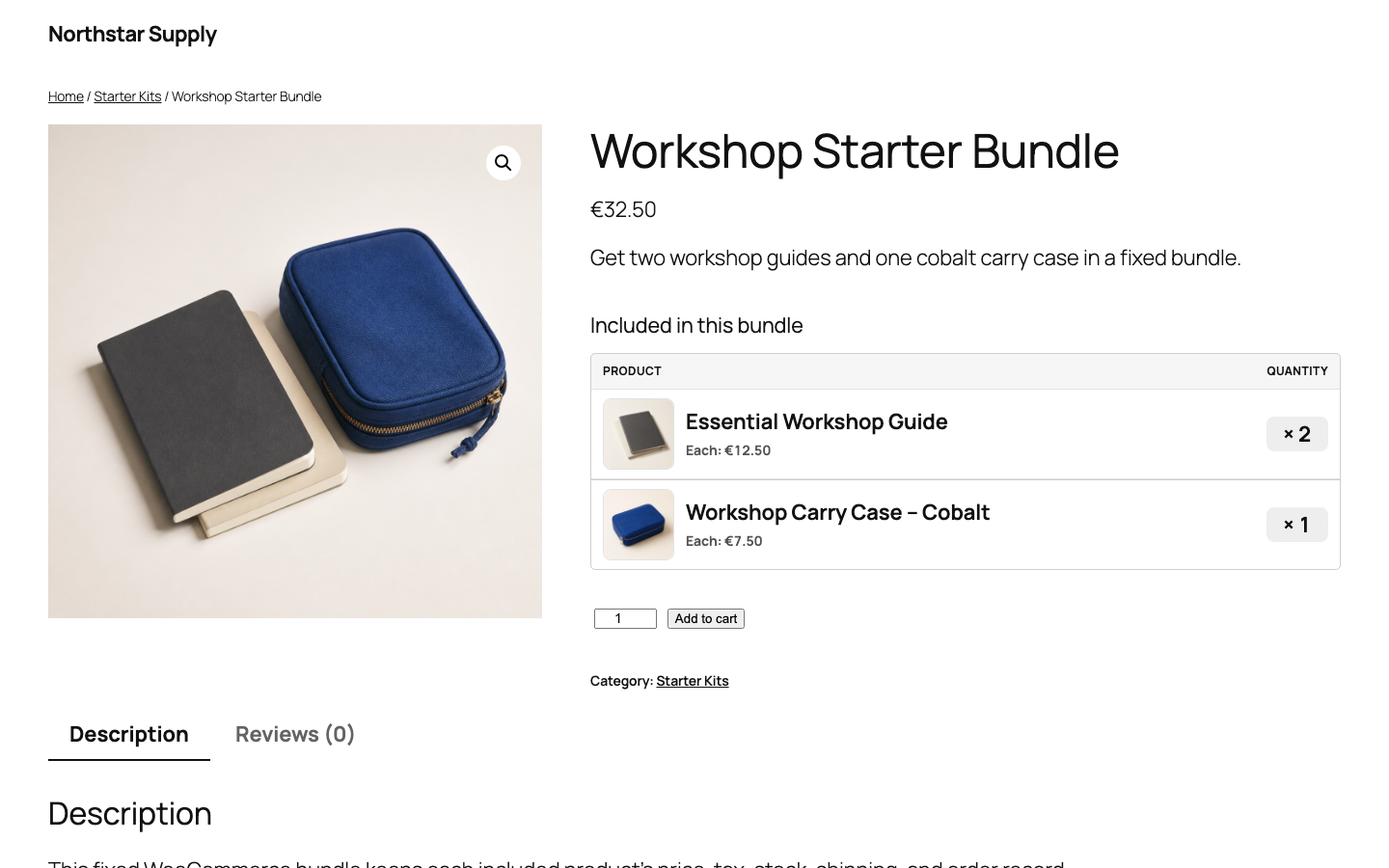
Storefront One product page for the full offer. Open full-size Storefront image -
Show bundle items in the cart.
The cart groups the bundle while each included item keeps its price, quantity, and stock data.
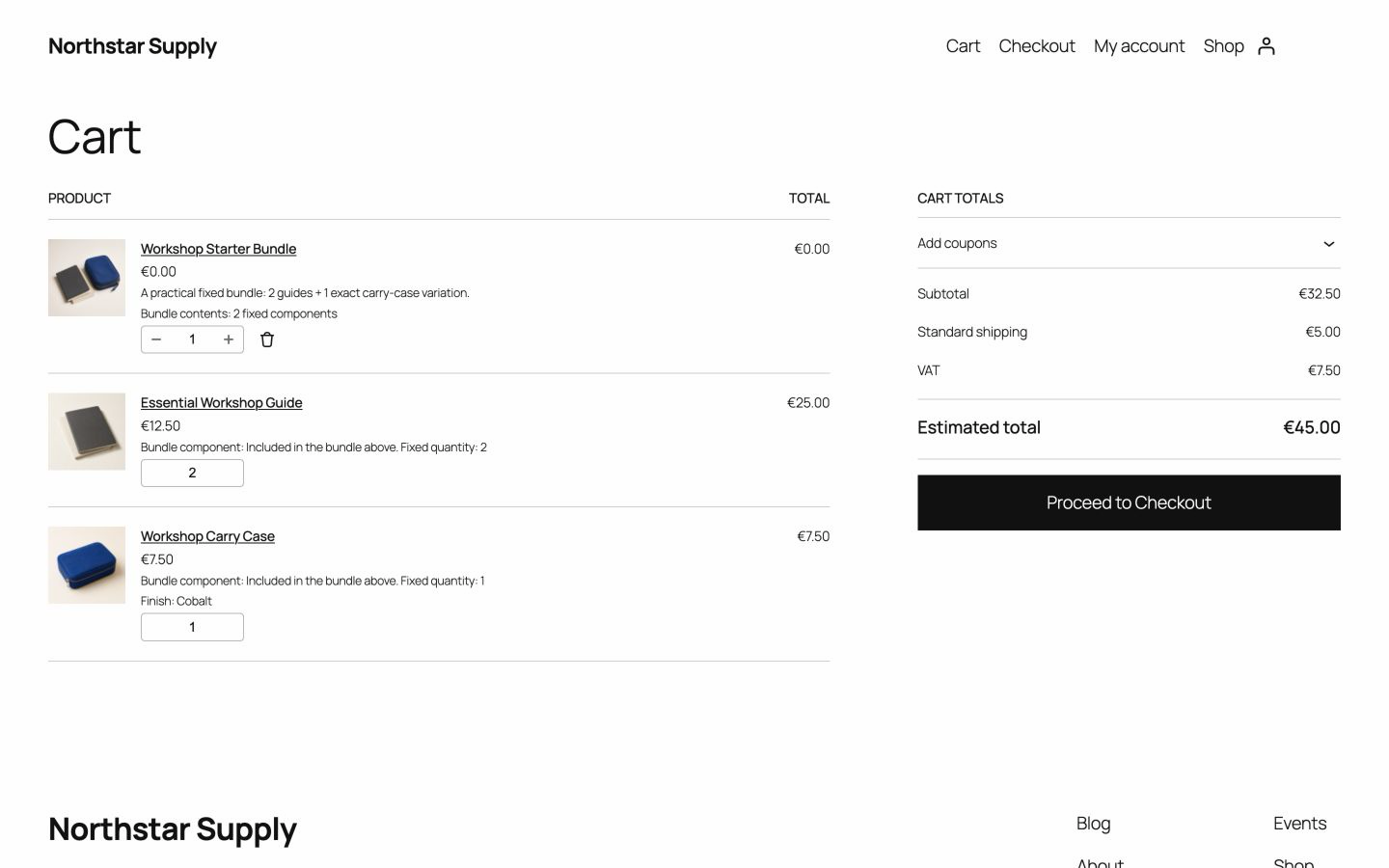
Cart One grouped purchase with separate item totals. Open full-size Cart image -
Check stock and totals before payment.
Checkout checks product quantities again and shows shipping, VAT, and the final total.
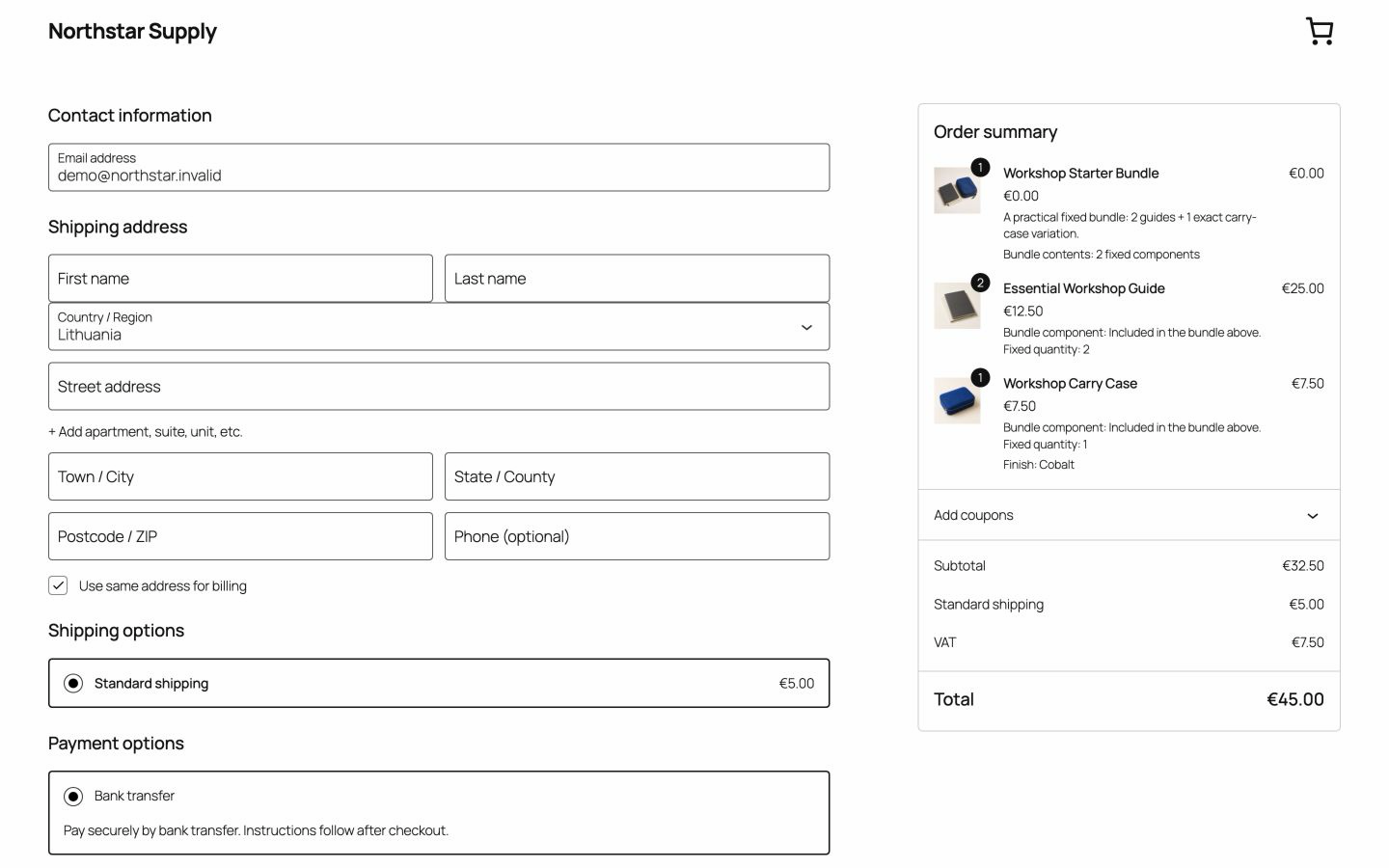
Checkout Final quantities, shipping, VAT, and total. Open full-size Checkout image


Try Advanced Bundles in a live WooCommerce demo.
The demo uses synthetic products and customer details. It opens in a separate tab.